

What happens when you lost the Personal folder in Outlook? You cannot access your emails, attachments, appointments. The corporate communication comes to a halt! But if there is a problem, there has to be a solution. The following blog discusses the probable causes and the solutions to find the lost folder in Outlook.
Reasons for deletion of Outlook Personal Folder
Numerous reasons are attributing to the loss of Outlook personal folder. Still, you can recover lost personal folder in Outlook by finding the root cause of the problem and performing the right steps for recovery.
- When your PST file size has exceeded its data-limit (Large PST File), and you are prompted to archive that PST file. But as soon as you start archiving the data, there is a power shutdown in the middle of the process and your machine shuts-down abruptly. The archiving process is also terminated, and you are end-up proclaiming a corrupt Outlook data. As a result, your mail folder, important emails, appointments and contact lists are lost.
- MS Outlook’s personal folders may be deleted accidentally. Another such situation is when you accidentally delete your Outlook Personal folder, and you are unable to retrieve this folder. Deleted PST file deletes important emails (Recover Deleted emails) and other communication-related data.
- Sometimes, during the scanning, the antivirus application installed in the system identifies malware-infected emails or attachments. Antivirus applications scan the folder and delete the complete folder even if only one file is infected.
How to Find Lost Folder in Outlook?
You can recover Outlook folder with the help of Inbox Repair Tool.
- Exit Outlook and start Inbox Repair Tool
- Select the PST from “Browse” and click on Start“Now Inbox Repair tool will scan, and if the problem detected, then it asks to start the repair process. Then Click on Repair”
- When the process gets complete, recover repaired items to a new PST file in Outlook.
In case if you don’t know the location of ScanPST.exe then you can check this Article
Recovering Outlook folder from the scanpst.exe file is a tedious task, and there is no surety if you get the complete data. Secondly, if you miss out a small step, the process is incomplete, and the desired results are not achieved after putting time and efforts at stake.
Before jumping to a dedicated tool, some users try an online pst repair website first, mainly because it looks like the quicker route and skips a download. It’s understandable, but worth pausing on. A PST file usually holds every email, contact and appointment you have, and handing that over to a browser-based service means it’s sitting on a server that isn’t yours. On top of that, most of these online tools choke on anything beyond a small file, so a personal folder that’s grown over the years often won’t even upload. A proper desktop tool avoids that entirely since the repair happens on your own system.
Alternatives to ScanPST.exe
In case if ScanPST.exe fails to give the result, then the best way to recover lost folder in Outlook is to download Stellar Repair for Outlook. Onsite reviews help you analyze the relevance of this tool and the satisfaction level achieved by the users.
3 Steps Procedure for Outlook Personal Folder Recovery
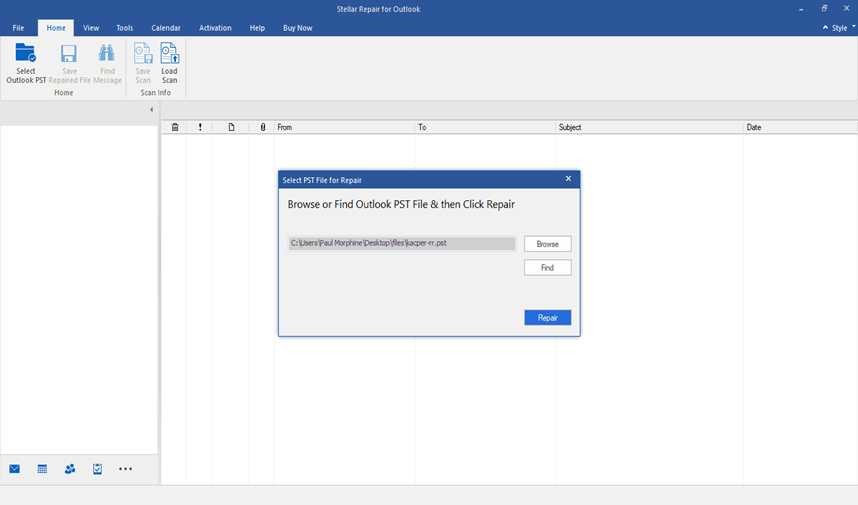
Stellar Repair for Outlook tool helps you to recover lost Folder in Outlook with below-mentioned steps. To recover lost folder in Outlook Download, Install and launch the software.
- Select PST file for Repair prompts you to select PST with Browse and Find Option
“Click on Browse if you know the location of PST file, and in case you are not aware of its location click on Find.”
- After selecting PST, Click the Repair button. The software scans the corrupt PST file. Time of scanning is directly proportional to the size of PST.
- You will see the preview of Scanned PST. Select Folder, Click “Save Repaired File” button from the File menu. Select saving format as PST from multiple saving options. Browse the location where you want to save the recovered PST. Click on OK button, and your repaired folder in Outlook is saved at the desired location.
To Sum up
Manual methods to Find a lost folder can be successful or time taking; however, it’s important to know its pros and cons. Also, It is advised to backup your PST regularly to avoid loss of data. But don’t worry Downloading Stellar Repair for Outlook helps you find files easily and repairs and saves data in a different location for safety and file security.

